
Appearance
Docker 私服 - Harbor
1. Harbor 安装
Harbor 支持在线安装包和离线安装包,本文以离线安装包作为示例进行安装。
下载 Harbor 离线安装包;
从 Github Releases 页面下载离线安装包,如 harbor-offline-installer-v2.12.4.tgz。
解压离线安装包;
将压缩包解压到当前目录:
Bash$ tar xzvf harbor-offline-installer-v2.12.4.tgz得到一个
harbor文件夹:Bash$ tree harbor harbor ├── common.sh ├── harbor.v2.12.4.tar.gz ├── harbor.yml.tmpl ├── install.sh ├── LICENSE └── prepare 1 directory, 6 files通过
prepare工具,可以检测当前安装环境是否已准备就绪:Bash$ ./prepare prepare base dir is set to /opt/dockers/harbor no config file: /opt/dockers/harbor/harbor.yml复制并编辑配置文件;
Bash$ cp harbor.yml.tmpl harbor.ymldiff@@ -2,20 +2,20 @@ # The IP address or hostname to access admin UI and registry service. # DO NOT use localhost or 127.0.0.1, because Harbor needs to be accessed by external clients. -hostname: reg.mydomain.com +hostname: 192.168.31.30 # http related config http: # port for http, default is 80. If https enabled, this port will redirect to https port - port: 80 + port: 5001 # https related config -https: +# https: # https port for harbor, default is 443 - port: 443 + # port: 443 # The path of cert and key files for nginx - certificate: /your/certificate/path - private_key: /your/private/key/path + # certificate: /your/certificate/path + # private_key: /your/private/key/path # enable strong ssl ciphers (default: false) # strong_ssl_ciphers: false @@ -49,7 +49,7 @@ # Harbor DB configuration database: # The password for the user('postgres' by default) of Harbor DB. Change this before any production use. - password: root123 + password: u2stAr3CciQxykW8L85b # The maximum number of connections in the idle connection pool. If it <=0, no idle connections are retained. max_idle_conns: 100 # The maximum number of open connections to the database. If it <= 0, then there is no limit on the number of open connections.以上主要是做了如下修改:
- 将
hostname改为服务器的 IP 地址,你也可以使用域名; - 将 HTTP 的端口号改为
5001; - 将 HTTPS 相关的配置注释掉,以便先禁用 HTTPS;
- 修改数据库的默认密码。
- 将
重新运行
prepare;Bash$ ./prepare prepare base dir is set to /opt/dockers/harbor Unable to find image 'goharbor/prepare:v2.12.4' locally v2.12.4: Pulling from goharbor/prepare 259e20632a89: Pull complete 9d3c23c4fe1a: Pull complete 48e220409d89: Pull complete a23d24267516: Pull complete a523ceca9c6b: Pull complete b91679e66cad: Pull complete dee0791cf07d: Pull complete 6b240c6cb11d: Pull complete fae1a7290768: Pull complete 48178d0316e5: Pull complete Digest: sha256:43314c25e3bc1e5bdc99dd9a6e1834f78323986a777fe415ab333d01477c68c2 Status: Downloaded newer image for goharbor/prepare:v2.12.4 WARNING:root:WARNING: HTTP protocol is insecure. Harbor will deprecate http protocol in the future. Please make sure to upgrade to https Generated configuration file: /config/portal/nginx.conf Generated configuration file: /config/log/logrotate.conf Generated configuration file: /config/log/rsyslog_docker.conf Generated configuration file: /config/nginx/nginx.conf Generated configuration file: /config/core/env Generated configuration file: /config/core/app.conf Generated configuration file: /config/registry/config.yml Generated configuration file: /config/registryctl/env Generated configuration file: /config/registryctl/config.yml Generated configuration file: /config/db/env Generated configuration file: /config/jobservice/env Generated configuration file: /config/jobservice/config.yml Generated and saved secret to file: /data/secret/keys/secretkey Successfully called func: create_root_cert Generated configuration file: /compose_location/docker-compose.yml Clean up the input dir当环境检测 OK,
prepare会去拉取一些它需要的初始镜像,并自动根据咱们上述的配置生成对应的配置文件。运行
install.sh开始安装;Bash$ sudo ./install.shinstall.sh会通过 Docker Compose 运行 Harbor 服务。检查服务运行状态:Bash$ sudo docker compose ps NAME IMAGE COMMAND SERVICE CREATED STATUS PORTS harbor-core goharbor/harbor-core:v2.12.4 "/harbor/entrypoint.…" core 3 minutes ago Up 3 minutes (healthy) harbor-db goharbor/harbor-db:v2.12.4 "/docker-entrypoint.…" postgresql 3 minutes ago Up 3 minutes (healthy) harbor-jobservice goharbor/harbor-jobservice:v2.12.4 "/harbor/entrypoint.…" jobservice 3 minutes ago Up 3 minutes (healthy) harbor-log goharbor/harbor-log:v2.12.4 "/bin/sh -c /usr/loc…" log 3 minutes ago Up 3 minutes (healthy) 127.0.0.1:1514->10514/tcp harbor-portal goharbor/harbor-portal:v2.12.4 "nginx -g 'daemon of…" portal 3 minutes ago Up 3 minutes (healthy) nginx goharbor/nginx-photon:v2.12.4 "nginx -g 'daemon of…" proxy 3 minutes ago Up 3 minutes (healthy) 0.0.0.0:5001->8080/tcp, [::]:5001->8080/tcp redis goharbor/redis-photon:v2.12.4 "redis-server /etc/r…" redis 3 minutes ago Up 3 minutes (healthy) registry goharbor/registry-photon:v2.12.4 "/home/harbor/entryp…" registry 3 minutes ago Up 3 minutes (healthy) registryctl goharbor/harbor-registryctl:v2.12.4 "/home/harbor/start.…" registryctl 3 minutes ago Up 3 minutes (healthy)警告
后续如果有编辑、更新了
harbor.yml文件,则需要先通过docker compose down停止并删除当前服务实例,再重新运行install.sh来启动新的服务实例,这样新的配置才会生效。登录 Harbor 控制台;
默认的用户名密码是
admin/Harbor12345,可以在登录后根据需要进行修改。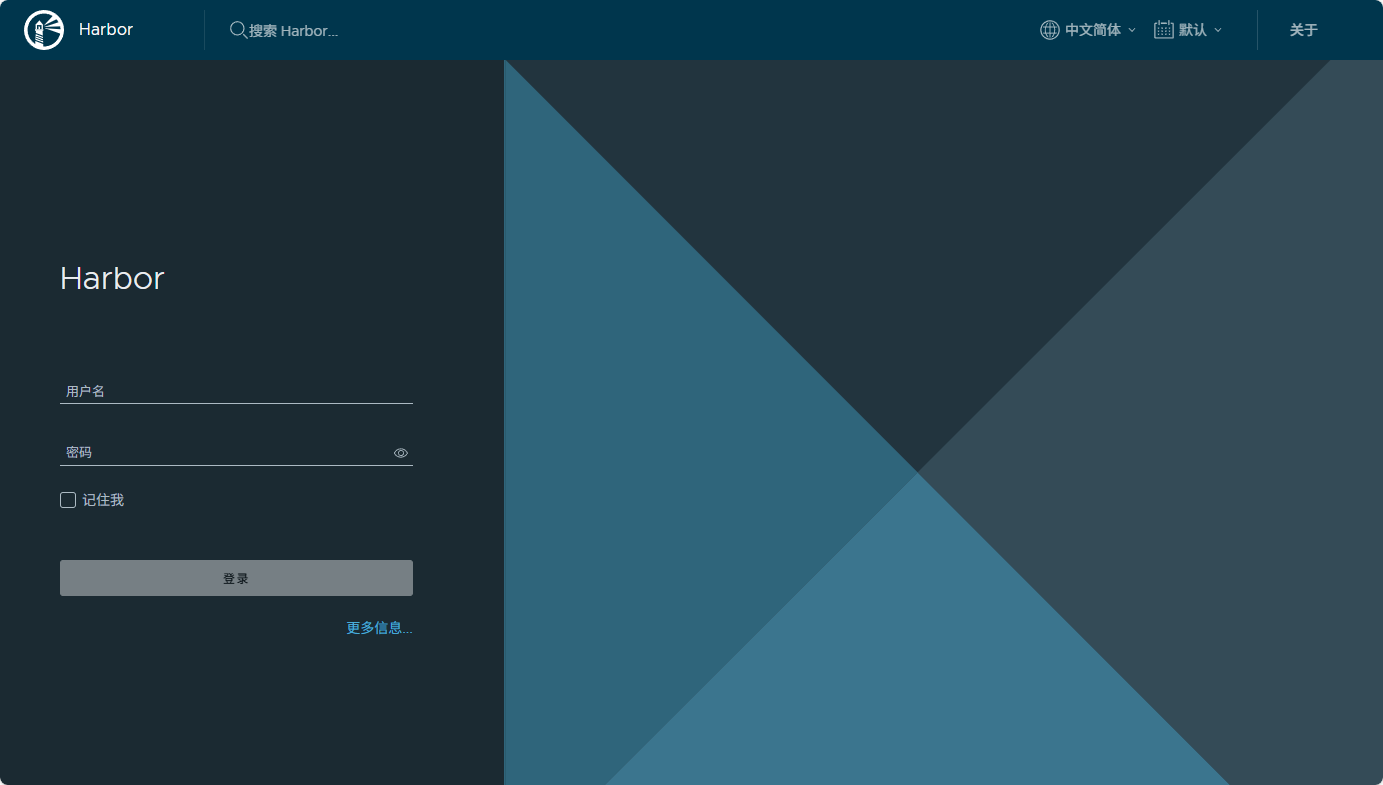
图 1.1 - 登录页 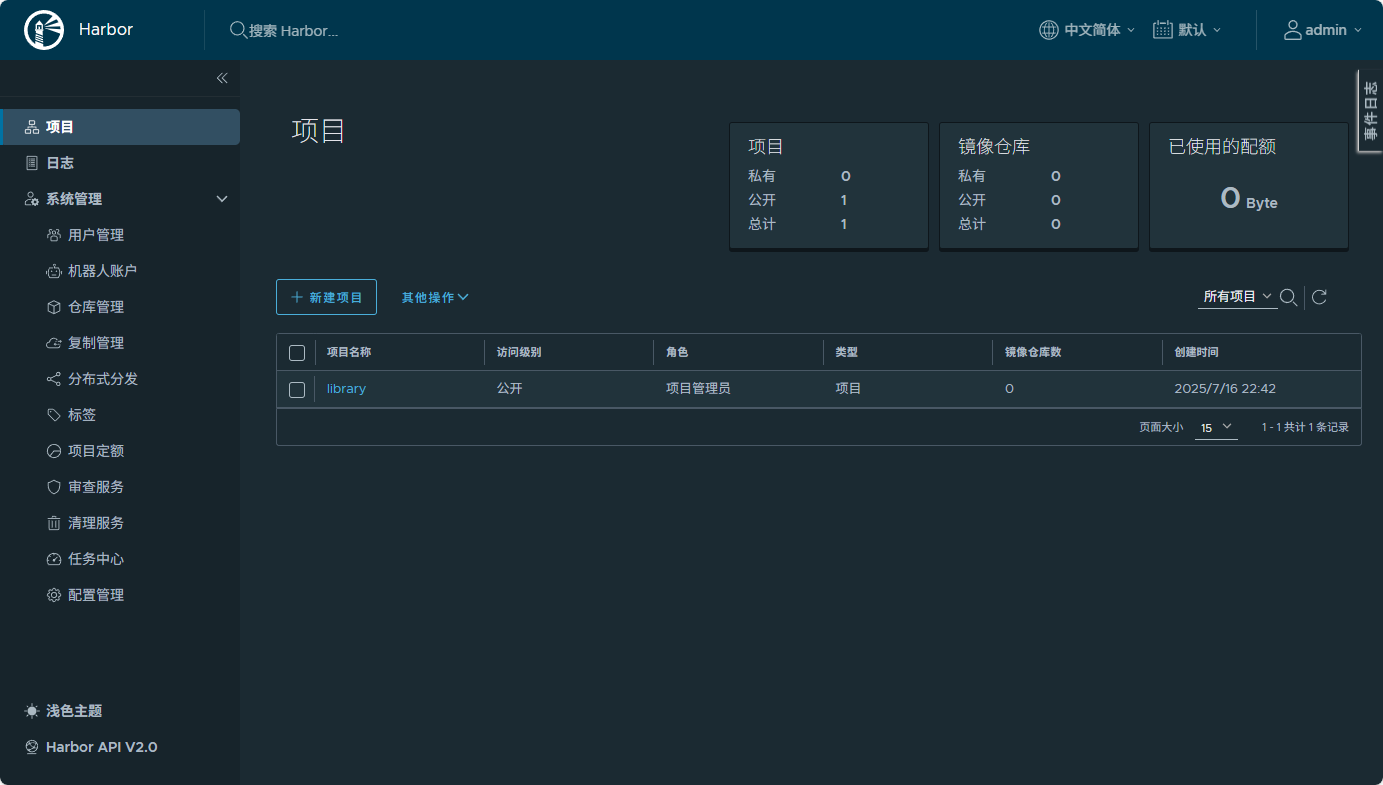
图 1.2 - 首页
2. Docker 客户端配置
默认情况下,Docker 要求镜像仓库使用 HTTPS 协议并具备有效、受信任的 SSL/TLS 证书以确保通信安全。如果一个仓库使用 HTTP(不安全)或 HTTPS 但证书是自签名的(未受信任),Docker 会拒绝连接。通过将仓库地址添加到 insecure-registries 列表,Docker 守护进程可以绕过严格的 TLS 验证,与该仓库进行交互。
打开
/etc/docker/daemon.json(如文件不存在,可以手动创建)添加如下配置:JSON{ "insecure-registries": ["192.168.31.30:5001"] }重启 Docker 服务:
Bashsudo systemctl restart docker
3. 推送和拉取
在 Web 控制台中新建项目,例如
my-priv;Docker 客户端登录
Bash$ docker login -uadmin 192.168.31.30:5001在项目中标记镜像
Bash$ docker tag SOURCE_IMAGE[:TAG] 192.168.31.30:5001/my-priv/REPOSITORY[:TAG]推送镜像到当前项目
Bash$ docker push 192.168.31.30:5001/my-priv/REPOSITORY[:TAG]等待推送完成后可以在 Web 控制台中看到该镜像。
拉取服务端镜像到本地:
Bash$ docker pull 192.168.31.30:5001/my-priv/REPOSITORY[:TAG]可以直接在 Web 控制台中复制拉取命令。
4. 配置 HTTPS
可以使用 Nginx 代理 HTTPS 请求,也可以直接修改 harbor.yml 文件以启用 HTTPS:
YAML
# https related config
https:
  # https port for harbor, default is 443
  port: 443
  # The path of cert and key files for nginx
  certificate: /your/certificate/path
  private_key: /your/private/key/path
  # enable strong ssl ciphers (default: false)
# strong_ssl_ciphers: false需要注意的是,需要先通过 docker compose down 停止并删除当前服务实例,再重新运行 install.sh 来启动新的服务实例,这样修改后的配置才会生效。