
Appearance
Playwright
1. 开始
创建一个 .net 6 控制台应用程序
添加引用
Microsoft.Playwright包生成项目
右键项目
在文件资源管理器中打开文件夹Shift+RightButton,在此处打开 Powershell 窗口输入命令:
PowerShellpwsh .\bin\Debug\net6.0\playwright.ps1 install以上这条命令将安装 playwright 所需的浏览器。
信息
这里需要 PowerShell 6 及以上的版本,可以参考 PWSH 安装说明 安装最新版本的 PowerShell。
打开
Program.cs,并将其替换为以下代码:csharpusing Microsoft.Playwright; try { using var playwright = await Playwright.CreateAsync(); await using var browser = await playwright.Chromium.LaunchAsync(); var page = await browser.NewPageAsync(); await page.GotoAsync("https://www4.bing.com/?form=DCDN"); var path = $"{Guid.NewGuid().ToString("N")}.png"; await page.ScreenshotAsync(new PageScreenshotOptions { Path = path }); Console.WriteLine(path); } finally { Console.WriteLine(); Console.WriteLine("Press any key to exist"); Console.ReadKey(); }运行
默认情况下,
playwright以 headless 模式运行浏览器。若要打开浏览器 UI,请在启动浏览器时传递Headless = false标志。还可以通过slowMo选项来降低执行速度。想要了解更多信息请参考调试章节。csharpawait playwright.Chromium.LaunchAsync(new BrowserTypeLaunchOptions { Headless = false, SlowMo = 50, });
2. Inspector
2.1. 打开 Playwright Inspector
有以下几种打开 Playwright Inspector 的方法:
设置
PWDEBUG环境变量以在调试模式下运行脚本。这将配置 playwright 进入调试并打开 Inspector。PowerShell 脚本:
PowerShell$env:PWDEBUG=1 dotnet test设置
PWDEBUG=1时,也会自动配置以下内容:- 以 headed 模式运行浏览器
- 默认超时时间将被设为 0(永不超时)
以 headed 模式运行浏览器时,在代码中调用 Page.PauseAsync() 方法
csharpawait page.PauseAsync();在 Playwright CLI 中使用
open或codegen命令:PowerShellpwsh bin\Debug\netX\playwright.ps1 codegen wikipedia.org
2.2. 调试 Playwright 脚本
在运行到断点处的代码时,它已经执行了可操作性检查,可以在日志中找到:
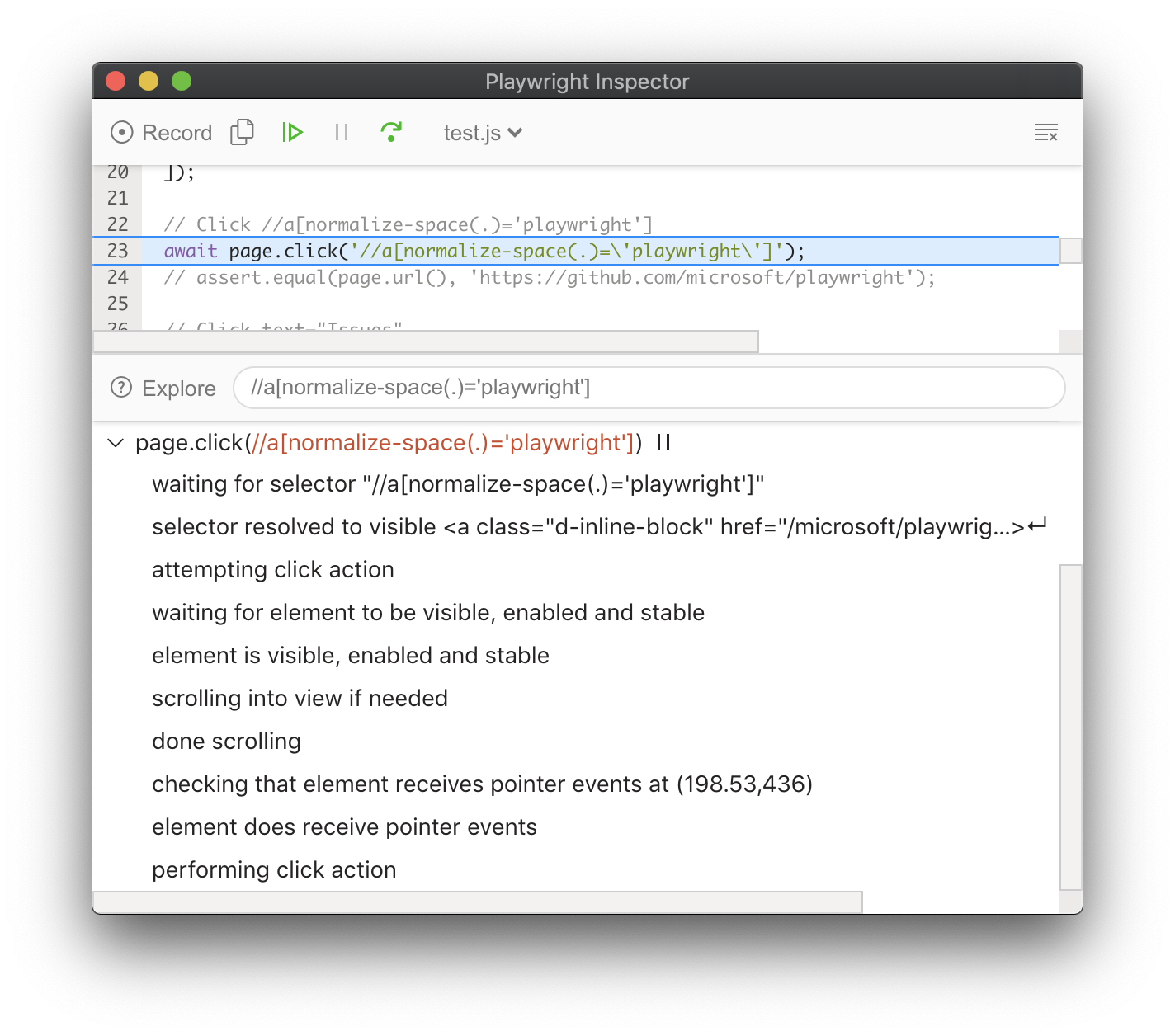
如果未能通过可操作性检查,将显示待执行的操作:
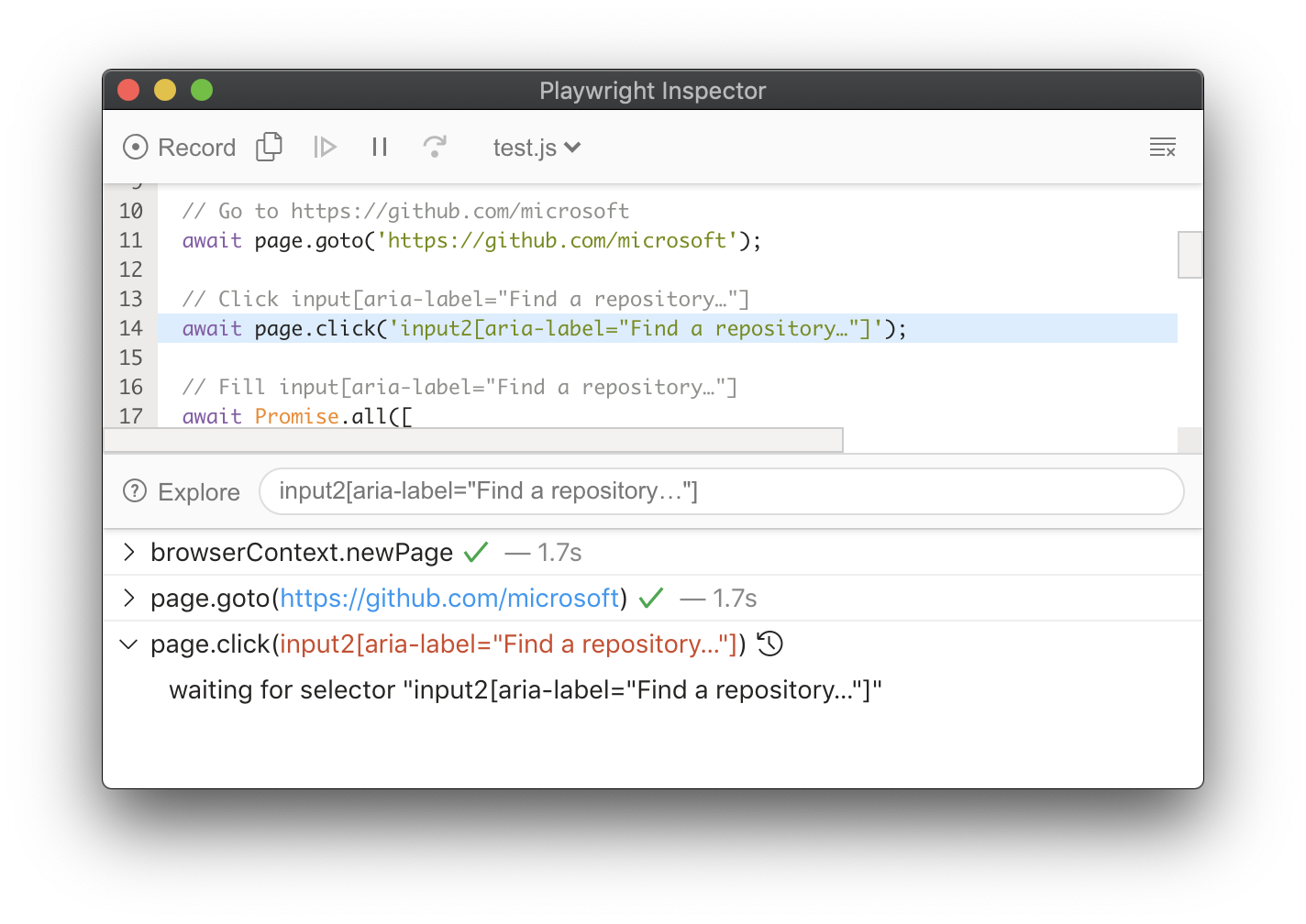
2.3. 选择器
还可以在任何浏览器的开发者工具控制台中使用以下 API:
playwright.$(selector)使用 Playwright 查询引擎查找元素
playwright.$$(selector)与
playwright.$类似,但是此方法返回所有匹配的元素playwright.inspect(selector)选择元素进行检查(如果浏览器支持)
playwright.locator(selector)与
playwright.$类似,但是此方法返回的是一个Locator对象playwright.selector(element)为该元素自动生成选择器
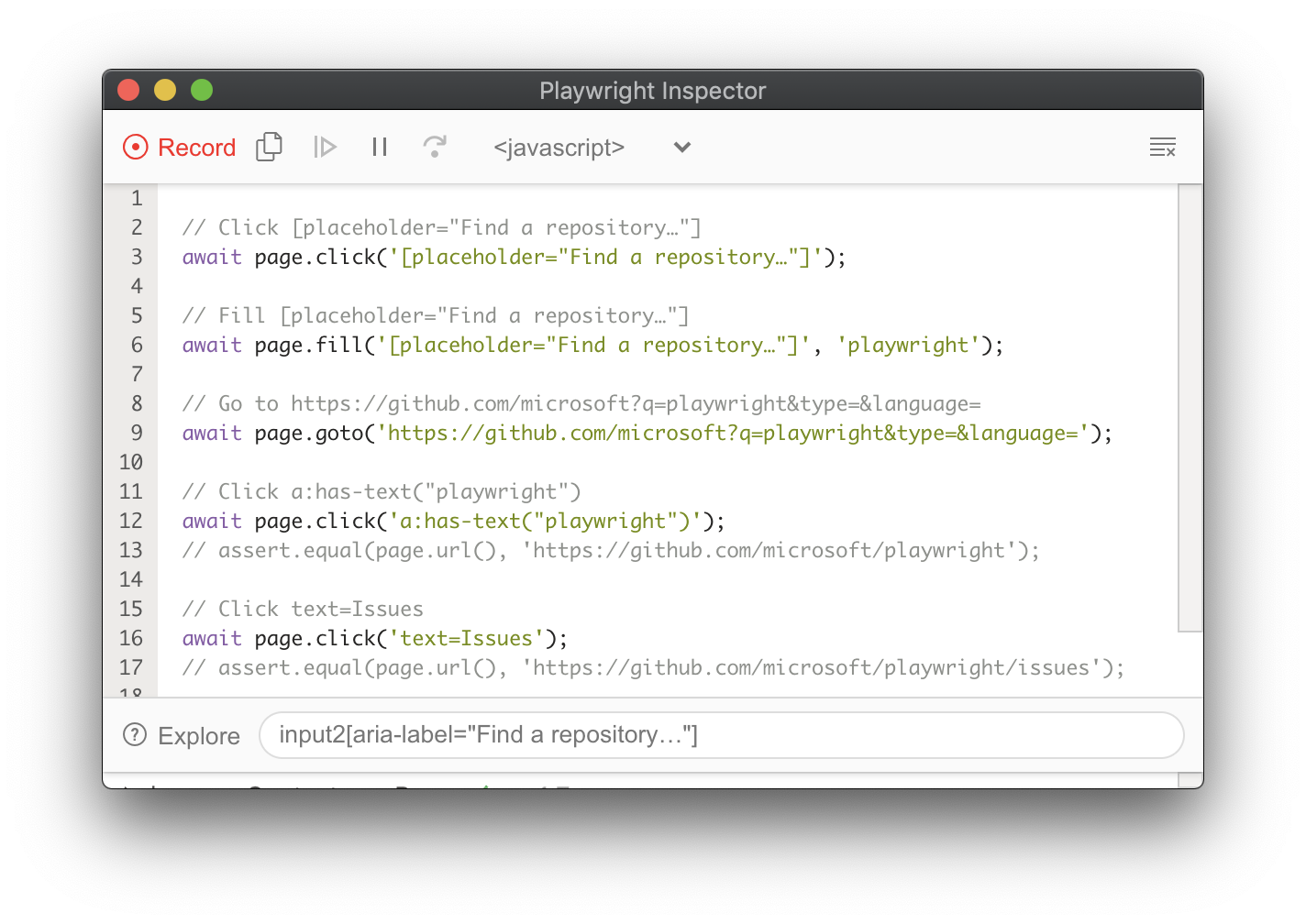
2.4. 录制脚本
在任何时候,单击 Record 按钮都会启用 codegen 模式。目标页面上的每个操作都会转换生成为脚本:
3. 跟踪查看器
3.1. 记录跟踪
可以使用 BrowserContext.Tracing API 记录跟踪
csharp
using var playwright = await Playwright.CreateAsync();
await using var browser = await playwright.Chromium.LaunchAsync();
await using var context = await browser.NewContextAsync();

// Start tracing before creating / navigating a page.
await context.Tracing.StartAsync(new TracingStartOptions {
    Screenshots = true,
    Snapshots = true,
    Sources = true
});

var page = await context.NewPageAsync();
await page.GotoAsync("https://playwright.dev");

// Stop tracing and export it into a zip archive.
await context.Tracing.StopAsync(new TracingStopOptions {
    Path = "trace.zip"
});3.2. 查看跟踪
可以通过 Playwright CLI 查看本地的跟踪文件:
PowerShell
pwsh bin\Debug\netX\playwright.ps1 show-trace trace.zip甚至是远端的跟踪文件:
PowerShell
pwsh bin\Debug\netX\playwright.ps1 show-trace https://example.com/trace.zip或者在浏览器中打开 trace.playwright.dev,并将跟踪文件拖拽进去进行查看,或者将远端的跟踪文件作为参数附在该链接后面进行查看:
Text
https://trace.playwright.dev/?trace=https://demo.playwright.dev/reports/todomvc/data/cb0fa77ebd9487a5c899f3ae65a7ffdbac681182.zip4. 测试生成器
4.1. 生成测试脚本
运行 codegen 命令并在浏览器中执行操作,Playwright 将会把所有的用户交互生成为代码:
PowerShell
pwsh bin\Debug\netX\playwright.ps1 codegen wikipedia.org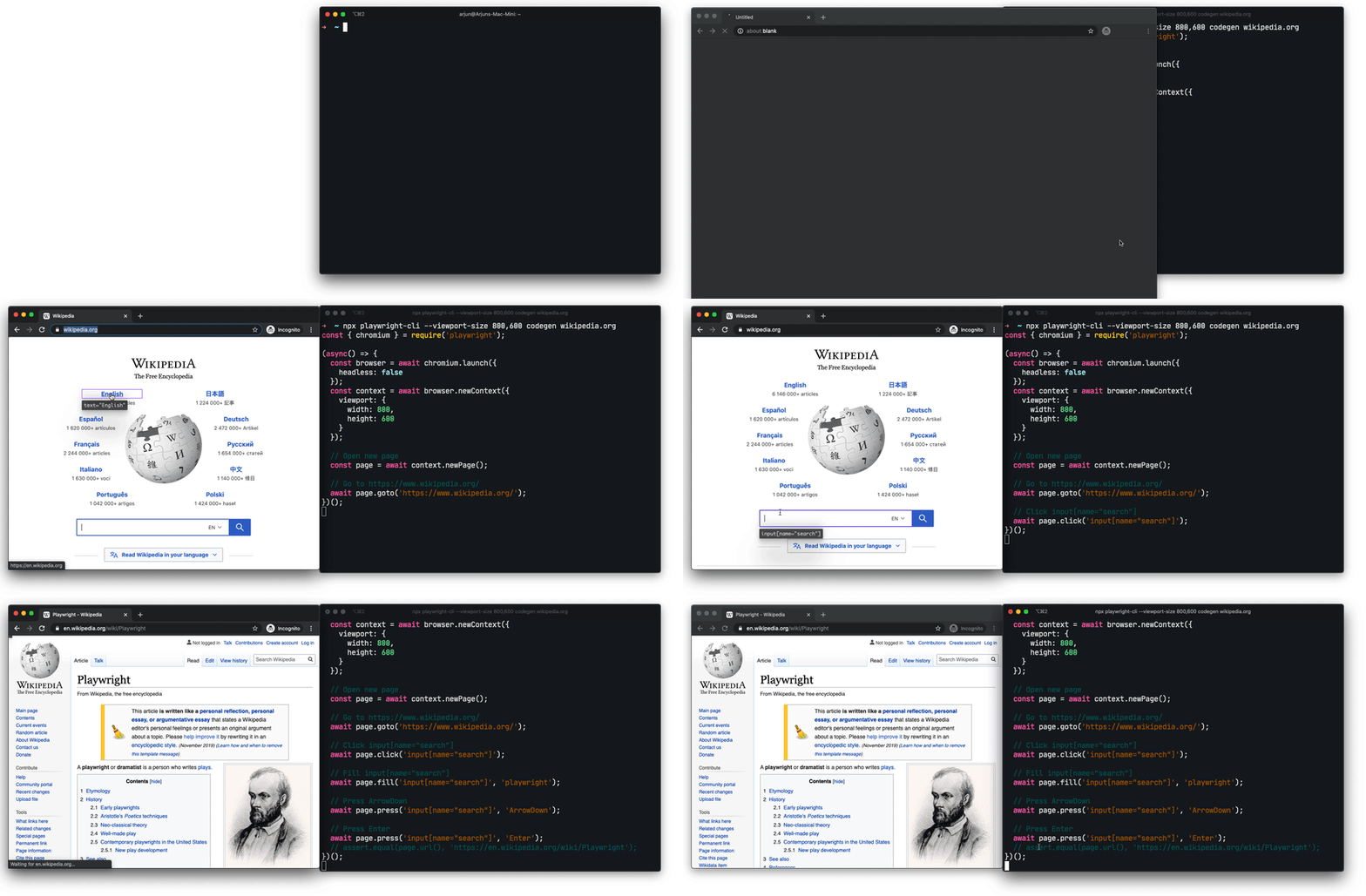
4.2. 保留身份验证状态
运行 codegen 命令时携带 --save-storage 选项以在会话结束时保存 cookie 和 localStorage。这有助于单独记录身份验证状态,并在以后的测试中重用它。
PowerShell
pwsh bin\Debug\netX\playwright.ps1 codegen --save-storage=auth.json使用 --load-storage 选项来加载之前保留的文件。来恢复所有的 cookie 和 localStorage:
PowerShell
pwsh bin\Debug\netX\playwright.ps1 open --load-storage=auth.json my.web.appPowerShell
pwsh bin\Debug\netX\playwright.ps1 codegen --load-storage=auth.json my.web.app4.3. 环境模拟
Playwright 还支持模拟设备:
PowerShell
pwsh bin\Debug\netX\playwright.ps1 codegen --device="iPhone 11" wikipedia.org模拟颜色主题、界面尺寸:
PowerShell
pwsh bin\Debug\netX\playwright.ps1 codegen --viewport-size=800,600 --color-scheme=dark twitter.com模拟地理位置、语言和时区:
PowerShell
pwsh bin\Debug\netX\playwright.ps1 codegen --timezone="Europe/Rome" --geolocation="41.890221,12.492348" --lang="it-IT" maps.google.com